Projector Drills · Beta
One Phone Runs It All
Your Android phone projects the drill, watches the wall through its own camera and scores every shot — at the same time. Connect a projector, let the app calibrate itself, and train on targets that roll, fly and appear without warning, in realistic outdoor scenes on your own wall. No PC, no IR camera, no extra hardware.
Windows PC or laptop + IR camera and/or special hardware + simulator software + projector + training laser. More boxes, more cables, more to set up before the first shot.
Your Android phone + a projector + your laser cartridge and unloaded firearm. One device drives the picture, senses the laser and scores the shot.
No expensive projector needed. A budget short-throw projector is enough — our test unit is the Magcubic HY450C, a 1080p short-throw model (about US$200 at the time of writing) that fills a wall from only about 1.5 m away, so even a small room gets a full-wall range. Already dry-firing on a TV or display? LaserLock works with one too — see what you need.
We are not aware of another laser training app that runs the projected drill, laser sensing and scoring on a single phone.
Why Projected Targets
Built for the Skills That Win Stages
Static paper teaches precision. Moving targets teach everything that happens between shots. Projector drills are designed around targets that roll, fly, turn and react — so each repetition trains the skills a static target cannot.
Targets appear, move and change position, forcing fast acquisition and clean transitions instead of settling on one aim point.
Your eyes find the target, your hands deliver the shot. Repetition at pace tightens that link until it runs without conscious effort.
Rolling and flying targets reward a smooth swing and correct lead — the track-and-break loop clay and moving-target shooters rely on.
Spawn zones and randomised entries mean you never know where the next target comes from. Reaction time, not memory, decides the hit.
What You Train On
Targets That Move Like the Real Thing
Every target type has its own movement, physics and spawn logic. Hit it and it reacts — a ball jumps, a drone comes apart, a board swings. Each set can bring a different scene, background and mix of targets.
Balls of random size roll across the scene on physics — speed, bounce and direction change every set.
Clay-style discs launched across the wall. Track, lead, break.
Hovering, weaving drones that explode into pieces when hit — a moving target with a small vital area.
Static, wandering and turning boards with scoring rings — the precision baseline inside a moving scene.
Spawn areas and timed waves put targets where you are not looking.
Visual realistic background — beach, snow, open country — can change set by set, with their own target mix.
How a Session Runs
Connect, Calibrate, Shoot — the App Does the Rest
Everything a PC simulator needs an operator for, LaserLock does on its own and tells you what it is doing — on the phone and on the wall.
Point the phone at the wall. The app finds the four corners of the projected picture, zooms and focuses the camera and places the pins by itself. You check and confirm.
A few gentle flashes measure the full loop — projector, camera and processing — for your own phone and projector, so hits on moving targets are scored where you aimed.
Before each set the app measures the projected picture and sets its own detection level, and warns you if the room or projector is too bright for reliable sensing.
Fire a few shots at the wall. The app confirms it sees your laser, checks the colour — red, green or blue — and shows each shot on the wall before the drill starts.
Shot and time limits per set, voice prompts, a slow-motion hold on the last hit, then results on both screens.
While you read the results the phone rests — camera, video and sensing off — so it cools between sets. Your training time counts only while you are actually shooting.
Precision on Moving Targets
Hits Land Where You Aimed
Every phone and projector adds a small display delay. On a fast target, even a fraction of a second puts the hit behind your aim point. LaserLock measures that delay during calibration and compensates every shot automatically — the target is scored where it was when the laser fired, and the hit mark travels on with it.
Measured for your own phone and projector combination — no guesswork, no manual tuning. A fine-trim slider is there for shooters who want to dial it in on a rolling ball.
A panel on the wall shows the hit target with a ring overlay: ring number and points, bullseye and dead-centre counts, hits and misses, live group size — and a 3-D view of the target turned to the side you saw.
After the final shot of a set the scene slows down so you see exactly where it landed before the results open.
Shot Mechanics · Beta
See the Flinch, Not Just the Hit
Where the shot landed is half the story. Projector drills also trace the laser just before, at and after every shot — so you see how the gun moved as the trigger broke, on still and moving targets. It uses the phone camera you already have: no rail sensor, no extra device.
Every traced shot keeps its scored hit and the laser path around it. Coaching is built from target hits only; missed shots are still analysed and shown separately for reference.
On a still target the movement is measured from the shot point. On a moving target your own tracking swing is taken out first — only the movement off your path counts as flinch.
Movement in MOA, a clock-face direction chart, before-versus-after, recovery after the shot, set-by-set comparison and plain-English hints for right- or left-handed shooters.
Add a low-power green laser pointer to the firearm as a steady tracker — masking tape is enough, angled so its dot lands anywhere on the screen away from your aim point. The app follows it continuously, so the movement between shots is seen too.
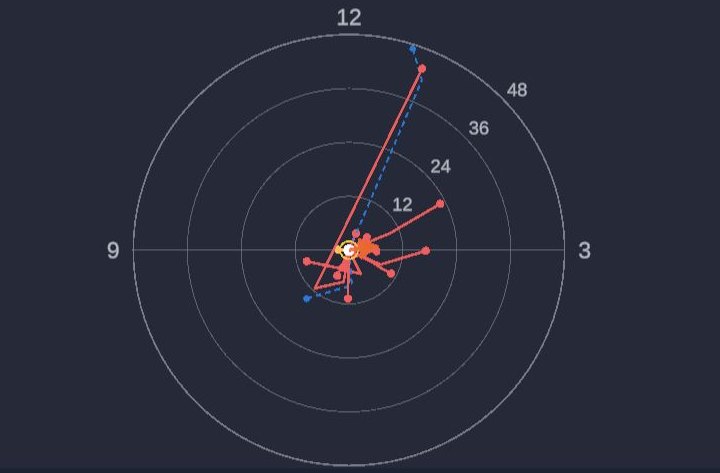
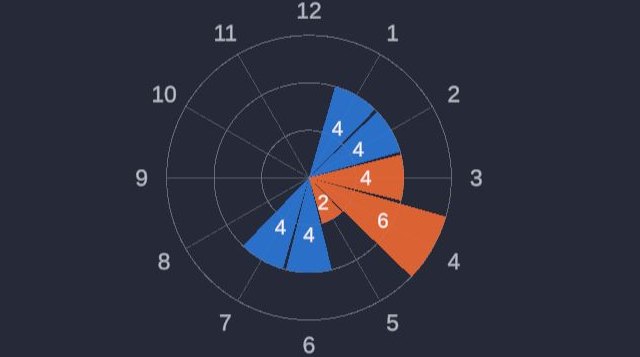
Flinch figures are worked out from the camera frames around each shot, so the detail depends on your phone's camera frame rate, the room and the set-up. They are a comparative measure to help you improve, not a precision measurement. A rail-mounted mechanics sensor records the trigger press itself in finer detail — the two work well together. Screens are from a beta test session and may change.
Two Lasers · Beta
Train Together on One Wall
The pre-drill laser test learns each laser's colour, so two shooters can share one projected drill — every shot is credited to the colour that fired it.
Red against green on the same targets. Each colour is scored on its own — hits, points, bullseyes — with a per-colour breakdown in the results.
Two lasers, one team: hits from both colours count together as one shared session.
Red, green or blue laser cartridges — the laser test confirms each colour before the set starts, and can run again mid-session when a partner joins.
A second laser cartridge, or a low-power pointer for dual-laser flinch tracking, is all it takes — no sensors, no extra devices, no second app.
Co-op, partner and dual-laser modes are part of projector drills (beta) and are used one at a time; bringing them to the other LaserLock drills is planned. Use only low-power lasers — Class 2 (1 mW or less) is a sensible choice — and never aim one at eyes, people, vehicles or aircraft. Laser pointer rules differ between countries and states; in parts of Australia, pointers above 1 mW are restricted. Check your local laws.
Results
The Same Coaching Analytics as Every LaserLock Drill
Grade, score, group size in cm and MOA, mean point of impact, CEP50, trend, bias clock, split times, laser analysis, per-set breakdown, PDF report and a share card — shown on the phone and on the wall at the end of each set. One training record across every mode. See the analytics →
Connect Your Way
Cable, Cast or Your Projector's App
Three ways to put the drill on the wall — pick what your projector supports.
USB-C to HDMI straight into the projector, then allow mirroring when the phone asks. The lowest latency, the least heat and the best battery life of the three. Needs a phone with video output over USB-C.
If your projector supports Android's built-in wireless display (Cast / Miracast), LaserLock sends the picture itself. Tap Cast Now and pick the projector.
Most projectors ship with a screen-share app, or work with any mirroring app already on your phone. Tap Choose App — LaserLock steps aside, you share the screen, then return. Tested with the Transcreen app and the Magcubic HY450C.
Best order: connect the cable, or start your screen-share app first and share LaserLock. Then in LaserLock simply tap Connect Cable — the welcome screen appears on the wall and the app guides you from there.
Share one app, not the whole screen. When Android asks what to share, choose a single app and select LaserLock. Full-screen mirroring shows your notifications and can stutter.
Started LaserLock first? Tap Choose App, open your screen-share app, share a single app, pick LaserLock and follow the prompts.
Projector placement: keep its light off your face and off the phone camera — in front of you or beside the phone, never behind the camera.
What You Need
A Phone and a Projector — or Your TV
The same phone drives the projector, reads the camera and scores — so a mid to high-range Android phone gives the best experience. A low-end phone may run a set or two before Android closes the app to protect itself; we cannot guarantee it. Lighter, optimised projector drills for low-end phones are in development for an upcoming version. Tested on Google Pixel 8 and 9 series.
Any projector with HDMI, wireless display or its own screen-share app. A short-throw model fills a wall from close up — ideal for small rooms. Our test unit, the Magcubic HY450C (about US$200), gives a picture around 2 m tall from about 1.5 m away. Brightness matters less than you think: the app sets its own detection level for your room.
A plain light wall or screen and a room you can dim. Stand where you can see the whole picture; put the phone on a tripod near your position, facing the wall.
Many shooters already dry-fire on a TV or display — a large screen such as a 60-inch TV works too. LaserLock casts directly to Google TV / Android TV; for other TVs use Chromecast, the TV's own screen-mirroring app or a cable, and share the LaserLock app only, not the full screen. A glossy LED / LCD screen reflects the laser like a mirror rather than scattering it back to the phone camera, so cover it with a matte, semi-transparent film with a coarse texture — for example a non-adhesive static-cling anti-glare, frosted or security window film. The textured surface scatters the laser at the hit point so the camera can see it, and the light it blocks tones down the bright TV picture that could otherwise look like a laser. Clear glossy sheets and cling wrap reflect the laser and won't work.
TV and display screens: use non-adhesive film only — no tape or glue on the screen — and never cover the TV's vents or let the film trap heat; follow your TV maker's care advice. A bare glossy screen bounces the laser straight back into the room like a mirror, away from the phone camera; a matte film scatters it at the hit point so the camera can see the shot — fit the film before shooting. Detection depends on the screen and the film; fire a few test shots first. LaserLock can work with a film-covered TV or display, but this set-up is optional and not a LaserLock recommendation. If you choose to use it, you do so at your own risk — it may affect your TV's warranty or your insurance, so check them first. To the extent permitted by law, LaserLock accepts no responsibility for damage to a TV, display or film.
Products are mentioned for compatibility guidance only. We do not sell hardware or receive commission on hardware sales.
One App, Every Setup
No Separate Projector App to Buy
Projector drills live inside the same LaserLock app as every other mode. Train indoors on real targets, outdoors in the shade at real distances, in the dark, or on a projected scene — one app, one set of results, one training record.
One phone on a tripod, real or on-screen targets, called-order and Double Tap drills.
Target camera downrange, live results in your hand — tested at outdoor distances.
Dark-room instinct training — Fluorescent, Flash and Thunderbolt.
Any Wi-Fi camera as the sensor, plus simulated long-range ballistics.
Coming Next
More Projector Drills on the Way
Projector drills keep growing, with a focus on speed, decision-making and coordination.
Planned, subject to change.
Good Practice
Battery & Phone Temperature
Driving a projector and analysing the camera at the same time is real work for a phone. LaserLock is built to keep that load light — and now rests the phone between sets — and a few simple habits keep longer sessions comfortable.
In ideal test conditions, 60 minutes of projector app usage consumed only 30%–40% battery (tested on a Pixel 9 Pro via Transcreen screen sharing and USB-C to HDMI cable)—leaving plenty of power for multiple sessions
LaserLock shows the phone's temperature at the start of each drill and how much it has risen. At 45 °C the display changes colour and a voice warning plays. Android's own heat protection still applies.
While the results are open, the camera, laser sensing, background video and rendering pause and the frame rate drops — the phone cools while you review. Training time is counted only while you shoot.
For longer sessions, a small fan blowing across the side of the phone or an air-conditioned room keeps the temperature in a comfortable range for much longer.
Projector drills were tested on mid to high-end Google Pixel phones under controlled conditions. Battery life, temperature and performance vary with phone, projector, room and connection method. To the extent permitted by law, we accept no liability for damage resulting from misuse or from extended use of a phone in overheated conditions. Aim only at the projected image on a wall or screen, or at a film-covered TV screen.
Secure Your Spot
Train This Way — Join the Free Beta
Free to join, free to test. No payment now or during beta.
Join the Beta List →